
Operational Programme (SME)
PURPOSE
This document describes the specifications of a Strategic Planning and Follow-Up and more specific those related to the National Programmes for SME. All these type of Programmes will be referenced in this document as Operational Programmes.
The SME National Programme is a subset of the information required by article 96 and only requires the information specified in the following paragraphs:
· 96(2)(b)(i) - Investment priorities and corresponding specific objectives
· 96(2)(b)(ii) - Results for each specific objective and corresponding result indicators
· 96(2)(b)(iv) - Common and specific output indicators
· 96(2)(d) - Financing plan
· 96(5) - Identification of authorities
· 96(6)(b) - Actions for unfulfilled ex-ante conditionalities
REGULATION
More detail regarding the regulation of Operational Programme can be found in the "About SFC2014" section of this portal.
ROLES
The roles involved in the Operational Programme (SME) are:
MS Managing Authority | Record Operational Programme Upload Operational Programme Documents Consult Operational Programme Delete Operational Programme Validate Operational Programme Send Operational Programme Return Operational Programme for Modifications Cancel Operational Programme Create New Version of an Operational Programme |
MS Audit Authority MS Certifying Authority | Consult Operational Programme |
FUNDS
ERDF | CF | ESF | YEI |
Workflow
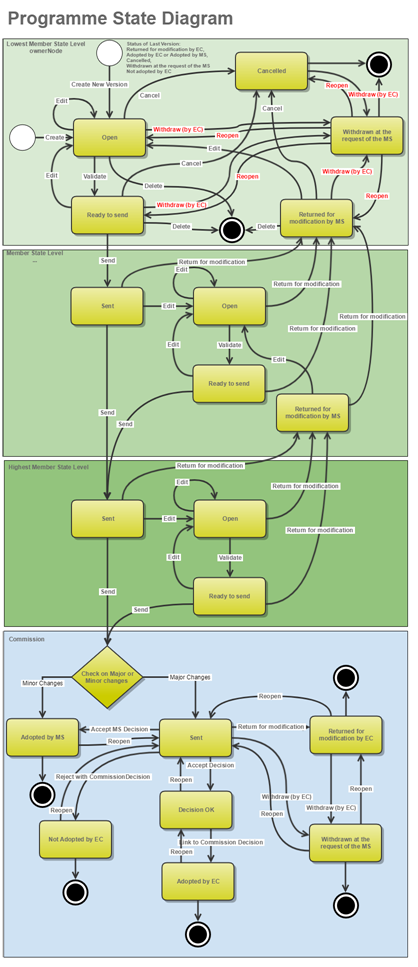
This section shows the lifecycle to create and manage an Operational Programme.
Click here to see the OP SME workflow diagram in high resolution.
Create the Operational Programme (SME)
Remark | To create the OP you must have MS Managing Authority with Update access for all the funds covered by the CCI. A CCI number must have been ALLOCATED by the Commission in order for you to create an Operational Programme IGJ. |
1. To access into Operational Programme section first click on the "Programming" link in the menu and then on the "Operational programme (IGJ)" link.

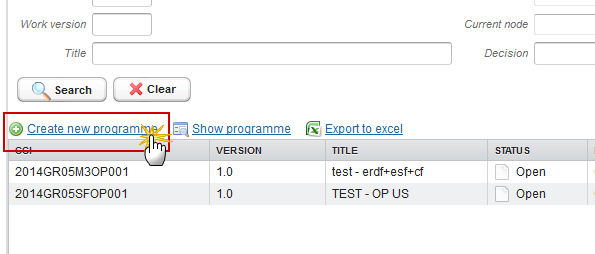
2. Click on the Create new programme link to create a new Operational programme.
You are redirected to Operational programme creation wizard:
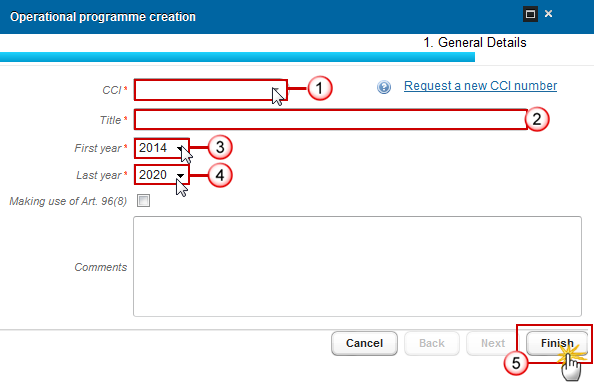
3. Enter or Select the following information:
Select a CCI.
The CCI list contains all allocated SME CCIs for the Country of the User's Node. If the CCI code is not in the list, the user can request a new CCI via the CCI Request form.
Enter a Title.
Select a First year.
Select a Last year.
First Year is pre-filled with 2014 and Last Year with 2020. Both fields can be updated but First Year needs to be smaller than Last Year and between 2014 and 2020.
Click on the Finish button to confirm the creation.
The status of the Operational programme is OPEN.
Record/Edit the Operational Programme (SME)
Find all the information to complete each screen of the Operational programme below, there are the links to the main sections for SME National Programmes:
- General
- S1 Strategy
- S2 Priority Axes
- S3 Financing plan
- S7 Authorities & bodies
- S9 Ex-ante conditionalities
General
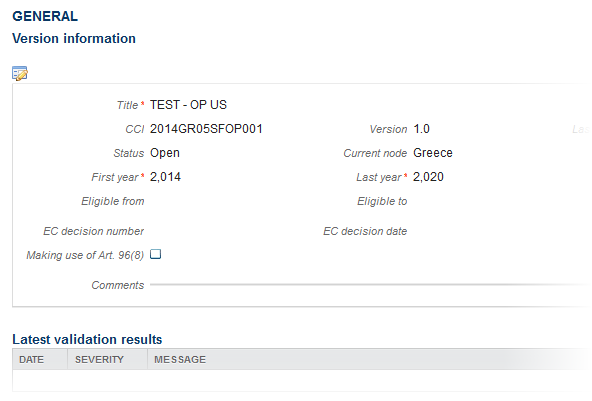
Version Information
The Version Information contains information on the identification and status of the Operational Programme Version like the CCI, the Title, the Version Number, the Status, the Node where it currently resides and eventually the Decision information. It also shows the results of the last validation done on this Programme version. The Eligibility Period will be automatically set on the first version when this version is submitted to the Commission.
The Version information for the Operational Programme can be modified once the version has been created.
1. Click on the Edit button  to modify the general information of the operational programme.
The edit details form pop-up window appears:
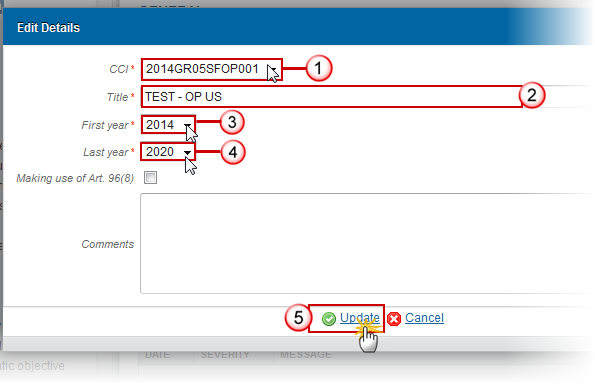
2. Enter or select the following information:
Select a CCI.
Enter a Title.
Select a First year.
Select a Last year.
Click on the Update link the save all the information.
NOTE | CCI can only be updated when Version 1 and also it can only be replaced by a CCI with the same Budget Source and Object subtype. In Version 1, First Year is pre-filled with 2014 and Last Year with 2020. Both fields can be updated. In subsequent versions, only the Last Year can be extended up until 2020. |
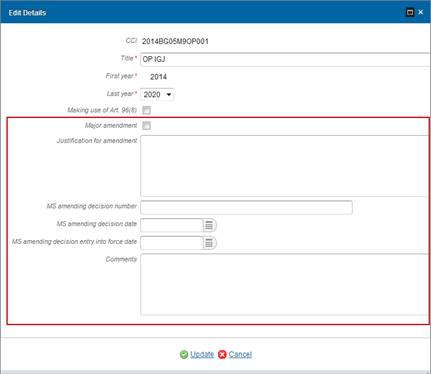
Remark | Major amendment, Approved by Monitoring Committee, Justification for amendment, MS amending decision number, MS amending decision date and MS amending decision entry into force date are only available in versions > 1. The MS related fields need to be filled in when the MS wants to create a version containing modifications which do not require a Commission Decision. This kind of version will automatically be set to 'Adopted by MS' when sent to the Commission and when only non-decisional parts of the Operational Programme have been modified. When Major amendment is set, a Justification is required and the version will need a new Commission Decision, even when only non-decisional parts have been modified. When Major amendment is not set, the MS amending decision fields are required (number, date, entry into force date). When version is > 1 then an approval by the Monitoring Committee is required.
|
Region Coverage
1. Click on the Edit button to modify the regions of the table.

The Select Regions screen appears:
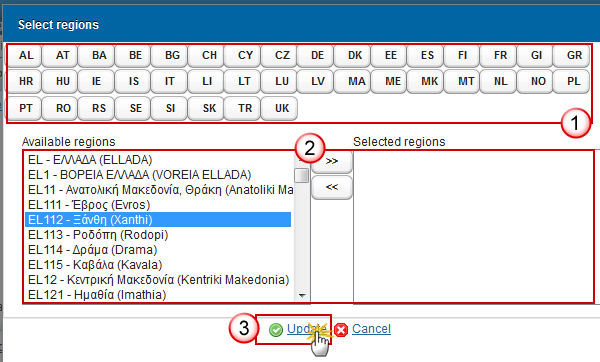
2. Enter or select the following information:
Select the country code to show the corresponding regions
Choose the regions that pertain to the Operational Programme.
Click on Update link to save the information.
NOTE | The country button corresponding to the Country of the management node of the programme will be focussed and the corresponding available Regions will be shown. The 2010 NUTS codes will be used. |
Officials in Charge
NOTE | Officials in Charge can be updated at any time, independent from the status of the Operational Programme. |
· Click on the Add button  to add a new official in charge.
· Select an official and click in the Edit button to modify the information of this official.
· Select an official and click on the Delete button  to delete the official in charge selected.
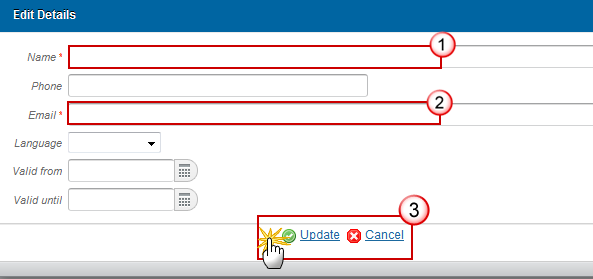
1. Enter the following information:
Enter the Name.
Enter the Email.
Click on Update to save the information.
NOTE | Commission Officials (email domain "ec.europa.eu") can only be created/updated/deleted by Commission Users. |
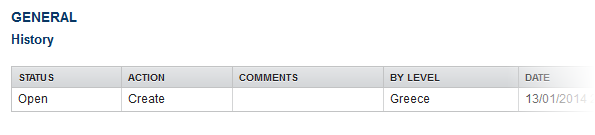
History
This section shows all the actions that happened in the Operational Programme since it was created, for example:
Documents
The following document types will be foreseen:
Description | Non-Integral | Integral | System | Required |
Supplementary information |
| X |
|
|
Other Member State Document | X |
|
|
|
Snapshot of data before send |
| X | X | X |
Acknowledgment of Receipt |
|
| X | X |
Draft Report of the Ex-ante Evaluation with an executive summary |
| X |
| X (only on version 1.0) |
Documentation on the assessment of the applicability and the fulfilment of ex-ante conditionalities |
| X |
|
|
Opinion of national equality bodies on sections 12.2 and 12.3 |
| X |
|
|
Citizens' summary |
| X |
|
|
Standard Funding Agreement for SME Programmes |
| X |
|
|
Legal Entity Form | X |
|
|
|
Bank Account Identification Form | X |
|
|
|
MS Request to withdraw programme version | X |
|
|
|
MS Request to return programme version for modification | X |
|
|
|
Uploading & Sending Documents
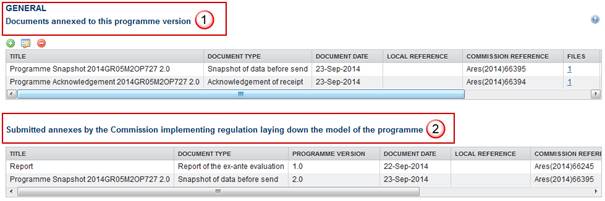
Multiple documents can be uploaded in the OP.
· The first documents list shows all documents uploaded against this version of the Programme by the Member State and by the Commission.
· The second documents list shows the last version uploaded against this Programme (independent of the Programme version) and sent to the Commission of document types: Programme Snapshot, Report of the Ex-Ante Evaluation, Documentation on the Assessment of the Applicability and the Fulfilment of Ex-ante Conditionalities and Citizens' Summary.
· Clicking on the Add button will open a pop up window allowing you to add a new document type with attachments.
· Selecting a document row and clicking on the Edit button will allow you to modify the document information. If a document of type 'Other Member State Document' must be sent, you can select the edit button in order to send the document.
Remark | Integral Documents ('Official Proposal', ' Draft Report of the Ex-ante Evaluation with an Executive Summary', 'Documentation on the Assessment of the Applicability and the Fulfilment of Ex-ante Conditionalities', ' Opinion of National Equality Bodies on Sections 12.2 and 12.3', 'Citizens' Summary') are only sent once the Operational Programme is sent. Referential/non-integral Documents (ie. 'Other Member State Document') can be sent at any time independently of the status of the Operational programme. The 'Other Member State Document' type demands a manual submission (they are NOT sent automatically within the Programme). The other document types, integral documents, are automatically sent - together with the encoded data – when the Programme is submitted to the EC. A document is only visible to the Commission when the SENT DATE is visible. |
1. Click on the Add button to add a new document.
The document detail pop-up window appears:
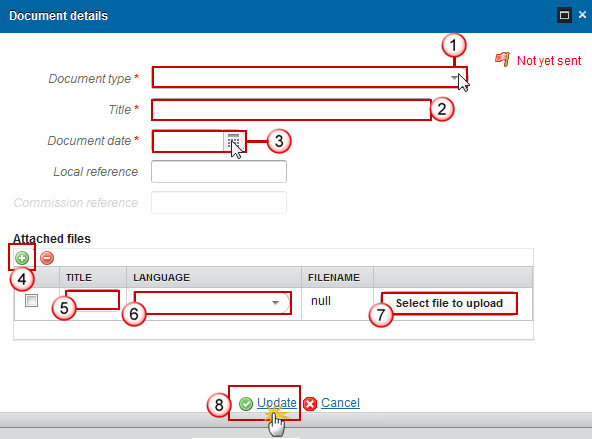
2. Enter or select the following information:
Select a Document Type
Enter a title for your Document
Enter a Document Date
Click on the Add button to add a new attachment
· You can add multiple attachments by clicking on the Add button
· You can remove unwanted attachments by selecting the attachment and clicking on the Delete button
Enter a Title for your attachment.
Select the Language of the document.
Select the file to upload.
Click on Update to save the information.
The pop-up window closes and the documents are uploaded:
Sending an unsent non-integral document
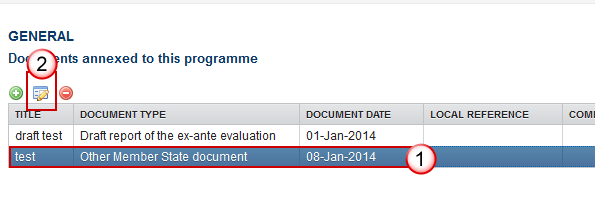
1. Once the document and attachment(s) have been uploaded select the document row in the list and click on the Edit Button :
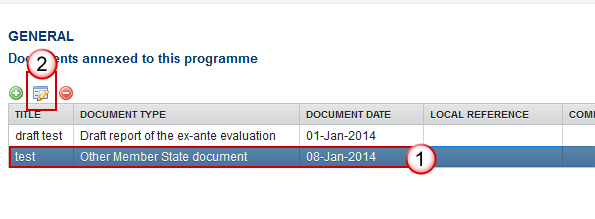
2. Click on Update & Send to send the document to the Commission.
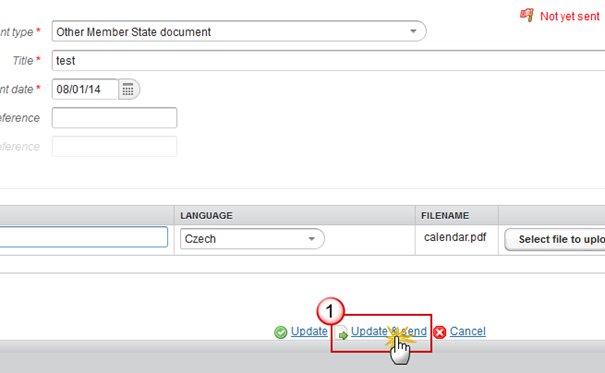
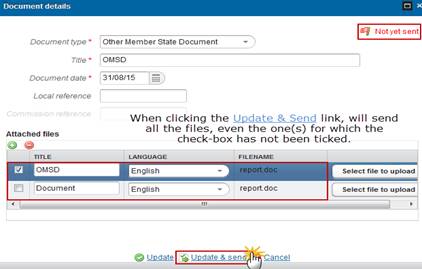
Remark | The Update & Send option is only shown for documents which are not an integral part of the OP and after at least one attachment was added. If more than one file are uploaded from the same document table, when clicking the Update & Send link, will send all the files and not only the one(s) for which the check-box has been ticked.
|
Deletion of an unsent document
1. Select a row of a previously uploaded document and click on the Delete button to delete the document and associated attachments.
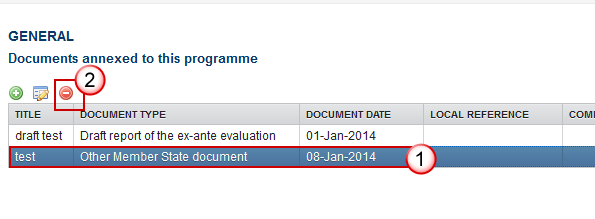
A confirmation window appears:

2. Click on 'Yes' to confirm deletion. Click on 'No' to return to the Partnership Agreement document.
Hiding a sent document
NOTE | Sent Documents can never be deleted, but the sender can decide to hide the content for the receivers in case of an erroneous and/or accidental send. |
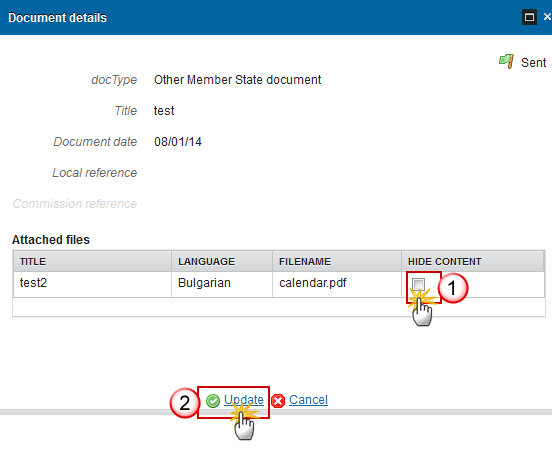
1. Select a row of a previously sent document and click on the Edit button to hide the document and associated attachments.
2. Select the 'HIDE CONTENT' option and click on 'Update' to hide the Operational programme document.
Observations
This section is to provide any relevant information to the Operational Programme. It can be used as a type of 'chat' between the Member State and Commission.
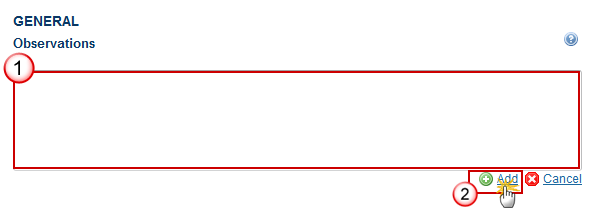
1. Enter the following information:
Enter an observation.
All users who have Read and Observation permission on the Operational Programme will be able to send an Observation and participate in the conversation.
Click on the Add link to save the information.
All Observations are kept against the specific version of the OP.
S1 Strategy
Strategy for the operational programme's contribution to the union strategy for smart, sustainable and inclusive growth and the achievement of economic, social and territorial cohesion.
Table 1 TO and IP justification
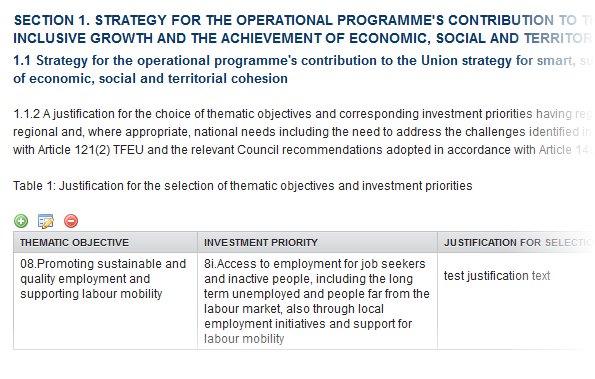
· Clicking on the Add button will allow you to fill a form to add the information.
· Selecting a row and clicking on the Delete button will remove the data of the selected row.
· Selecting a row and clicking on the Edit button will open a pop up allowing you to modify the information.
1. Click on the Add button to add new information.
The table1 form pop-up window appears:

2. Select the following information:
Select an Investment priority.
Click on the Update to save the information.
NOTE | The Investment priority List will contain all combinations valid for the Funds covered by the Programme (based on the CCI Budget Source). |
S2 Priority Axes
A description of the priority axes for technical assistance and others.
Non-TA priority axes
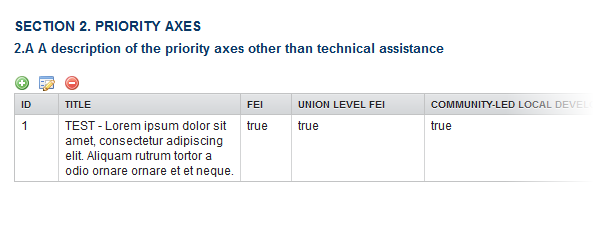
· Click on Add button to add a priority axes.
· Select a row and click on the Edit button to modify the information of the priority axes selected.
· Select a priority axes and click on the Delete button to delete the priority axes selected.
1. Click on the Add button to add a new priority axes.
The priority axes form pop-up window appears:
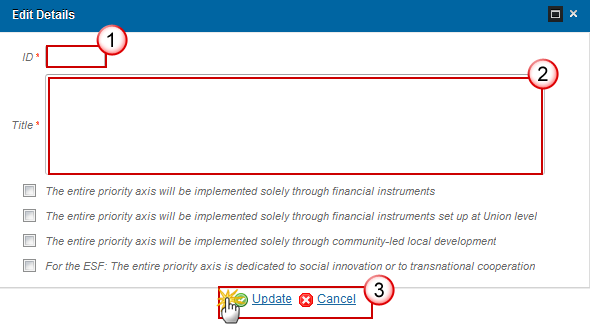
2. Enter or select the following information:
Enter the ID.
Enter the Title.
Click on Update to save the information.
Remark | In subsequent versions of the Operational Programme (>1), Priorities created in earlier versions: - Cannot be deleted. - The ID cannot be updated. - The Title can be updated to correct or complement the existing Priority Axis as long as it stays the same Priority Axis. |
Priority axis
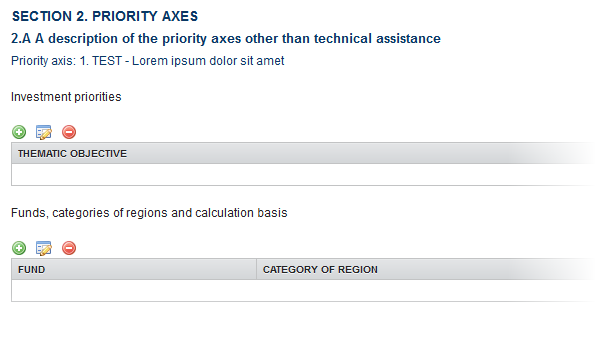
· Click on Add button to add the information on this table.
· Select a row and click on the Delete button in the corresponding table to remove the selected information.
· Select a row and click on the Edit button in the corresponding table to modify the information of this row.
1. Click on the Add button on the Investment priorities table to enlarge the information.
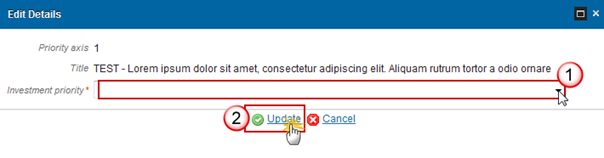
2. Select the following information:
Select an Investment priority.
NOTE | The Investment Priority List is limited to the Investment Priorities selected in Table1 TO and IP Justification section. The system will automatically maintain the records in the Thematic Objective Plan Table 18c by thematic objective section for Priority/Fund combinations covering more than 1 Thematic Objective and for the Fund / Category of Regions defined. |
Click on Update link to save the information.
3. Click on the Add button on the Funds, categories of regions and calculation basis table to add the information.
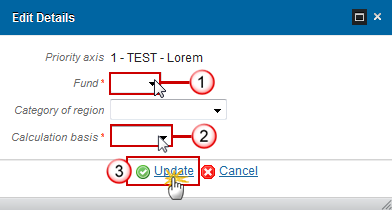
4. Select the following information:
Select a Fund.
Select a Category of region.
Click on Update to save the information.
Remark | The Fund List will contain all Funds covered by the Operational Programme as indicated by its CCI code. If the CCI covers only one Fund, this value is set by default. The Category of Region List will contain all entries valid for the Funds covered by the Operational Programme as indicated by its CCI code. It can be null because the Cohesion Fund and YEI have no Category of Region. When Funds ERDF and/or ESF are covered, they should at least have one Category of Region.
|
NOTE | The system will automatically maintain the records in: - The Annual Plan on Table17 by year section. - The Priority Plan on Table18a by Priority Axis, Table18b YEI Detail (when YEI) sections. - The Thematic Objective Plan on the Table 18c by thematic objective section for Priority/Fund combinations covering more than one thematic objective. - The ITI on the ITI section. |
Multi-category of region explanation
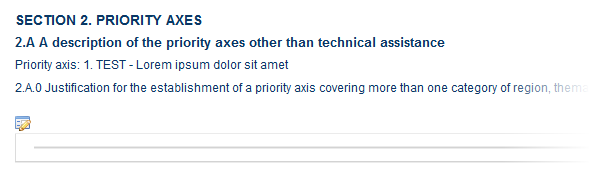
1. Clicking on the Edit button will open a pop up window allowing you to add a description text.
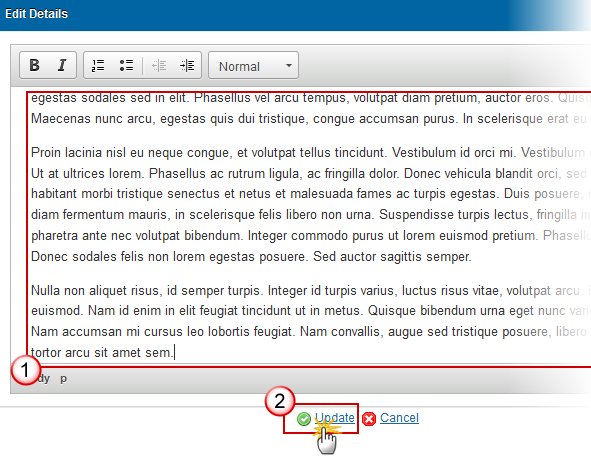
2. Enter the following information:
Enter a description text.
Click on the Update link to save the information.
Investment priority
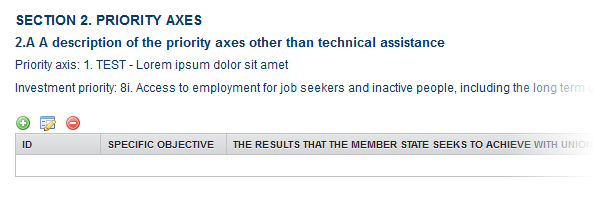
· Click on Add button to add an investment priority
· Select a row and click on the Delete button to remove the investment priority selected.
· Select a row and click on the Edit button in the corresponding table to modify the information of this row.
1. Click on the Add button to add an investment priority.
The investment priority detail pop-up window appears:
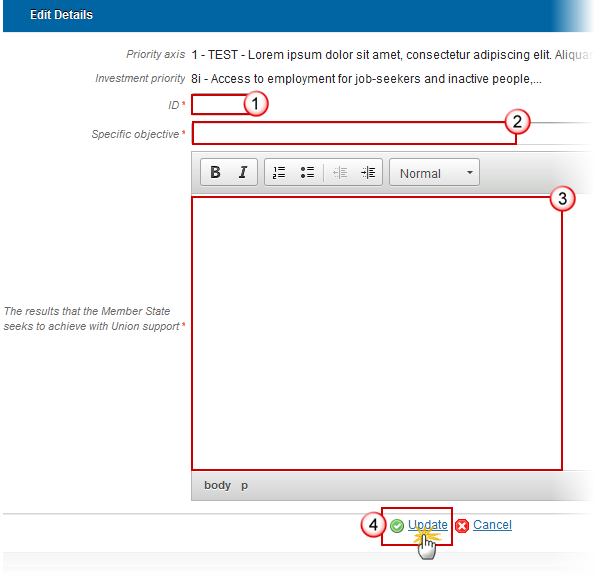
2. Enter the following information:
Enter an ID.
Enter a Specific objective.
Enter the results that the Member State seeks to achieve with Union support.
Click on Update link to save the information.
Specific Objective
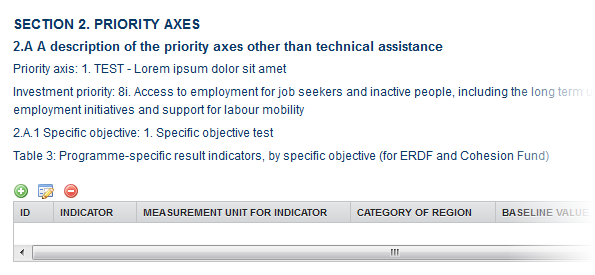
· Clicking on the Add button will open a pop up window allowing you to fill the fields of the form to add the information.
· Selecting row and click in the Edit button will allow you to modify the information.
· Selecting a row and clicking on the Delete button will delete the selected row.
Remark | When deleting a record using a Programme Specific Indicator, the Programme Specific Indicator definition gets also deleted when it is not used in any other record of any Indicator Table in any version of this Programme. |
1. Click on the Add button to add information in the table.
NOTE | There are two types of Specific result indicators depend the selection there are different ways to complete the form correctly. See all the possibilities below. |
The table detail pop-up window appears:
- First option Specific result indicators are selected:
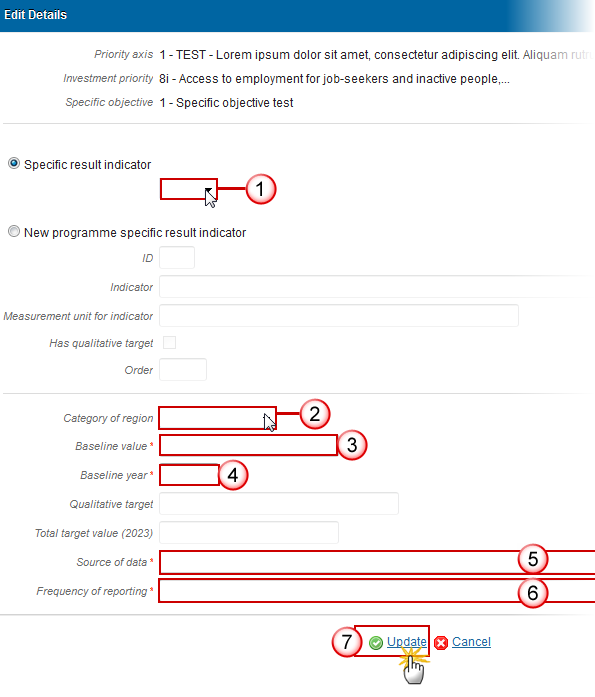
2. Enter or select the following information:
Select a Specific result indicator.
The Programme Specific Result Indicator List contains all Programme Specific Result Indicators previously defined on this Programme.
Select a Category of region.
Enter a Baseline value.
Enter a Baseline year.
Enter a Source of data.
Enter a Frequency of reporting.
Click on Update to save the information.
NOTE | The programme Specific Indicators can be defined under a Specific Objective and re-used under other Specific Objectives or for another Category of Region etc. |
- Second option New programme specific result indicator is selected.

Remark | When the Indicator has a qualitative target, foresee a String Field and store in "qualitativeTarget", otherwise foresee a Number field and store in "targetValue". |
3. Enter or select the following information:
Enter an ID.
NOTE | The Programme Specific Indicator IDs are defined by the managing authority. · If they manage different OPs or if the different managing authorities can arrange to use the same ID for identical indicators, then they should. MS are encouraged to use the same IDs over the different programmes for consistency and for aggregation. The IDs are 5 characters long and can consist of both numbers and letters. |
Enter an Indicator.
Enter a Measurement unit for indicator.
Enter an Order.
Select a Category of region.
Enter a Baseline value.
Enter a Baseline year.
Enter a Total target value (2023).
Enter a Source of data.
Enter a Frequency of reporting.
Click on Update to save the information.
Table5 Output indicators
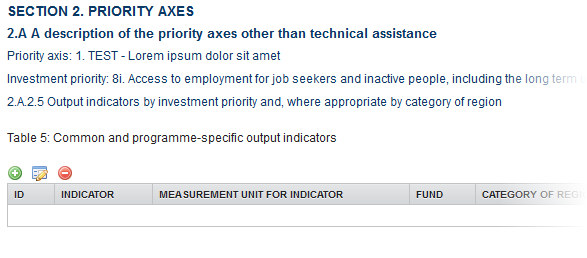
· Clicking on the Add button will open a pop up window allowing you to fill the fields of the form to add the information.
· Selecting row and click in the Edit button will allow you to modify the information.
· Selecting a row and clicking on the Delete button will delete the selected row.
Remark | When deleting a record, the Output Indicator definition gets also deleted when it is not used in any other record of any Indicator Table in any version of this Programme. |
1. Click on the Add button to add information on the table.
Note | There are three types of Output indicators depend the selection there are different ways to complete the form correctly. See all the possibilities below. |
The table detail pop-up window appears:
- First option Common output indicator used as basis is selected.
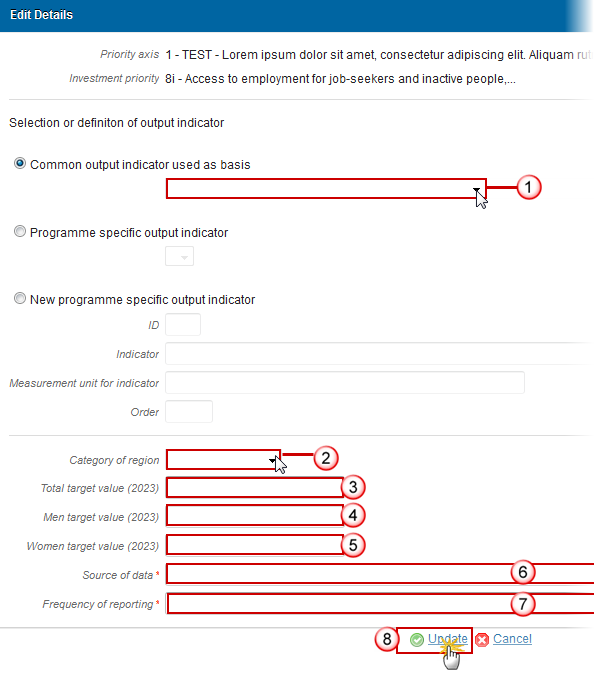
2. Enter or select the following information:
Select a Common output indicator used as basis from the list.
Select a Category of region.
Enter a Total target value (2023).
Enter a Men target value (2023).
Enter a Women target value (2023).
Enter a Source of data.
Enter a Frequency of reporting.
Click on Update link to save the information.
Note | The Common output Indicator List contains all ESF Common Result Indicators. Common Indicators are always quantitative. |
- Second option Programme specific output indicator is selected.
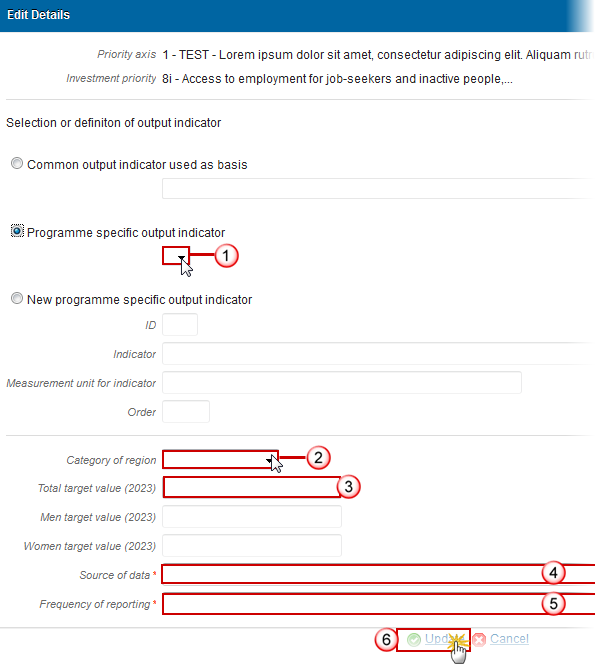
3. Enter or select the following information:
Select a Programme specific output indicator from the list.
Enter a Category of region.
Enter a Total target value (2023).
Enter Source of data.
Enter Frequency of reporting.
Click on the Update to save the information.
Note | The Programme Specific output Indicator never needs a Gender Breakdown. Therefore, Men and Women Target Value fields will be disabled in that case |
- Third option New programme specific output indicator is selected.
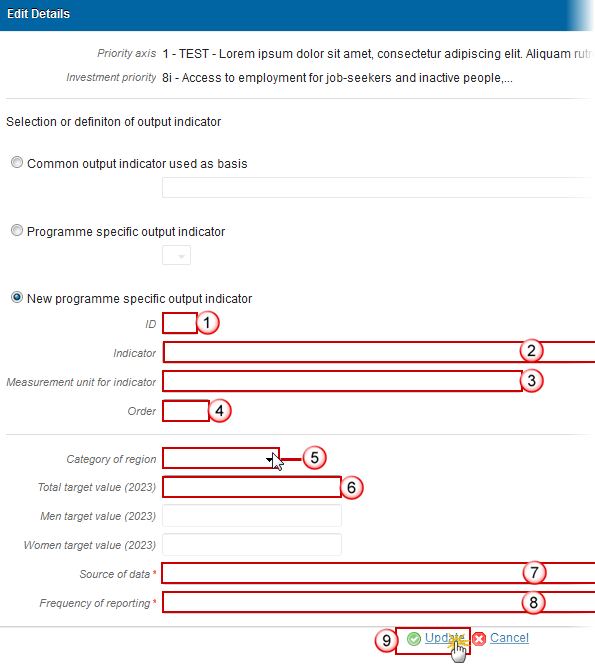
4. Enter or select the following information:
Enter an ID.
Enter an Indicator.
Enter a Measurement unit for indicator.
Enter an Order.
Enter a Category of region.
Enter a Total target value (2013).
Enter a Source of data.
Enter a Frequency of reporting.
Click on Update link to save the information.
S3 Financing plan
Table17 by year
Note | The Annual plan is presented for all years between First Year and Last Year and for all Funds and Categories of Region covered by the Programme |

1. Clicking on the Edit button will open a pop up window allowing you to modify the information about the annual plan.
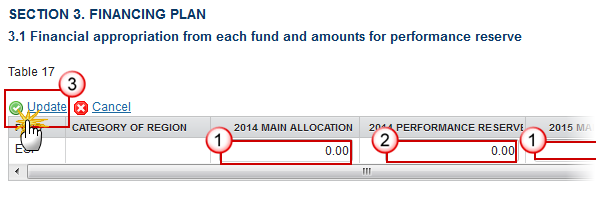
2. Enter the following information:
Enter the main allocation for each year.
Enter the performance reserve for each year.
Click on Update to save the information.
Table18A by priority axis
Note | The Priority Axis plan is presented for all Priority, Fund, Category of Region combinations defined in this Programme. |
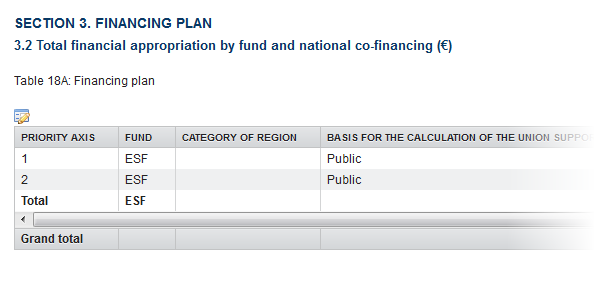
1. Clicking on the Edit button will open a pop up window allowing you to modify the information about the financing planning.
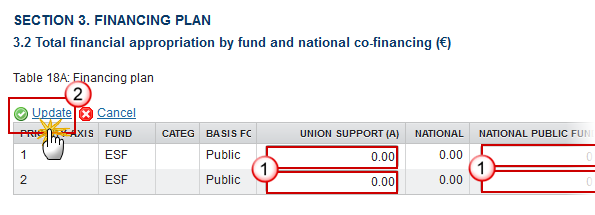
2. Enter the following information:
Enter the values for the fields:
- Union Support (A)
- National public funding (C)
- National private funding (D)
- EIB contributions (The EIB Contribution can only be updated on the first occurrence of a Priority Axis.)
- Performance Reserve Union Support (J)
Click on Update to save the information.
Note | Column K is only calculated when the MS defines Union Support Performance Reserve in column J. For YEI Priority Axes there is normally no performance reserve so K is not calculated. |
Note | The formula K=b*(j/a) is only applicable on the individual rows, NOT on the total. The total performance reserve national counterpart must be calculated by summing the individual values of column K and not by applying the formula on the total. This is because the total of column b and of column a contain amounts which have no performance reserve. |
S7 Authorities & bodies
Table23 Relevant authorities and bodies
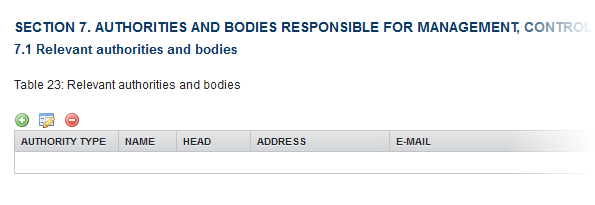
· Clicking on the Add button will open a pop up window allowing you to add the information.
· Selecting a row and clicking on the Delete button will delete the selected row.
· Selecting row and click in the Edit button will allow you to modify the selected row.
1. Click on the Add button to add information in the table.
The table detail pop-up window appears:
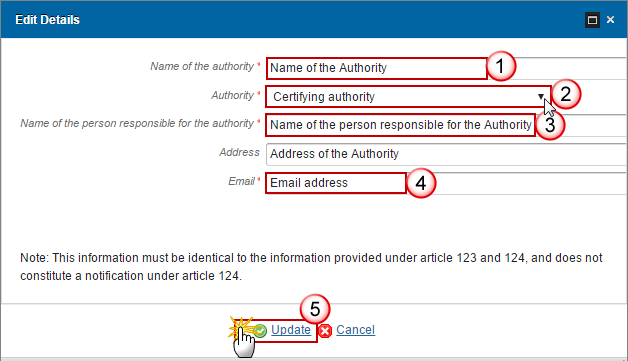
2. Enter or select the following information:
Enter the Name of the authority.
Select an Authority type.
The following Authority/Body Types are foreseen:
· Managing Authority
· Certifying Authority
· Audit Authority
· Body to which Commission will make payments
Enter the Name of the person responsible for the Authority.
Enter the E-Mail.
The Email Address is not required by the regulation, but is used by SFC2014 for automatic notification purposes.
Click on the Update link to save the information.
Involvement of relevant partners
Role of partners
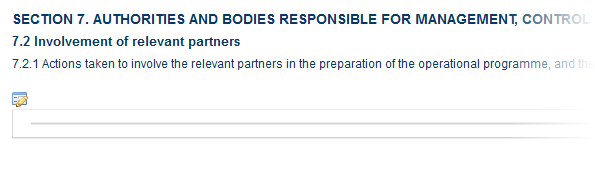
1. Clicking on the Edit button will open a pop up window allowing you to add a description text.
2. Enter the following information:
Enter a description text.
Click on the Update link to save the information.
S9 Ex-ante conditionalities
Assessment
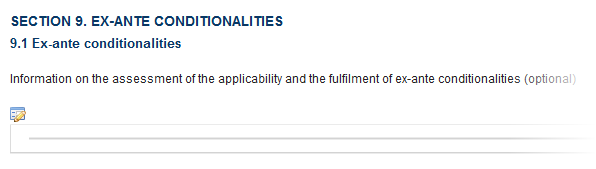
1. Clicking on the Edit button will open a pop up window allowing you to add a description text.
2. Enter the following information:
Enter a description text.
Click on the Update link to save the information.
Table24 Ex-ante conditionalities
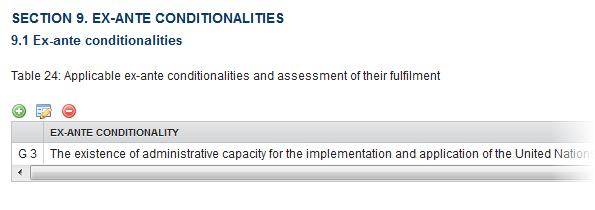
· Clicking on the Add button will open a pop up window allowing you to add the information.
· Selecting a row and clicking on the Delete button will delete the selected row.
· Selecting row and click in the Edit button will allow you to modify the selected row.
1. Click on the Add button to add information in the table.
The table detail pop-up window appears:
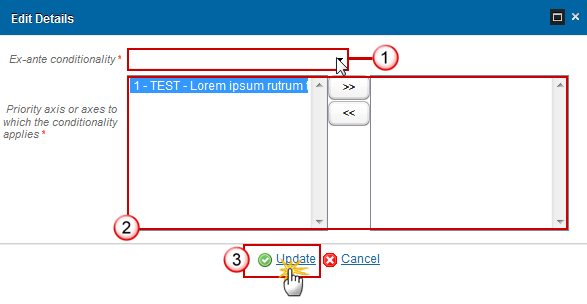
Note | The list of available Ex-ante Conditionalities will contain both Thematic and General Ex-ante Conditionalities. For each of the selected Ex-ante Conditionalities, the system will create all their Criteria in the table on the fulfilment of Criteria with fulfilled set to false. For each Criterion the system automatically foresees an Action to be taken record with description "To be defined". When deleting, the delete is also cascaded. This means that if you select in table 24: · general ex-ante conditionalities (starting with G) and criterion is set to Unfulfilled it will populate Table 25 · thematic ex-ante conditionalities (starting with T) and criterion is set to Unfulfilled it will populate Table 26 |
2. Select the following information:
Select an Ex-ante conditionality.
Select the necessary Priority axis or axes to which the conditionality applies.
Click on the Update link to save the information.
Table24 Criteria
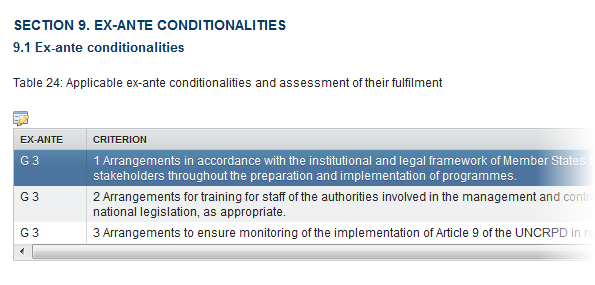
1. Clicking on the Edit button will open a pop up window allowing you to modify the information of the ex-ante conditionalities selected.
The table detail pop-up window appears:

2. Select the following information:
Select if Fullfilled.
Click on Update to save the information.
Note | For each of the Criteria of the selected Ex-ante Conditionalities, the user must indicate if it was fulfilled and provide References and an Explanation. The Reference is only mandatory when the Criterion was fulfilled. When setting a fulfilled Criterion to unfulfilled, the system will create a record in the Actions to be taken table, with description "To be defined". When setting an unfulfilled Criterion to fulfilled, the system will automatically remove its Actions to be taken. |
Tables25&26 Actions to be taken
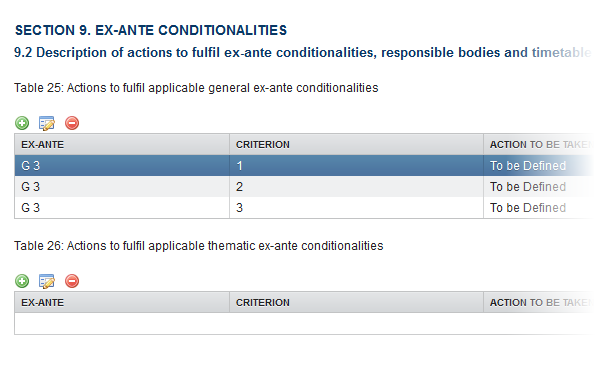
· Click on Add button to add the information on this table.
· Select a row and click on the Delete button in the corresponding table to remove the selected information.
· Select a row and click on the Edit button in the corresponding table to modify the information of this row.
1. Click on the Add button on the table25 to add the information.
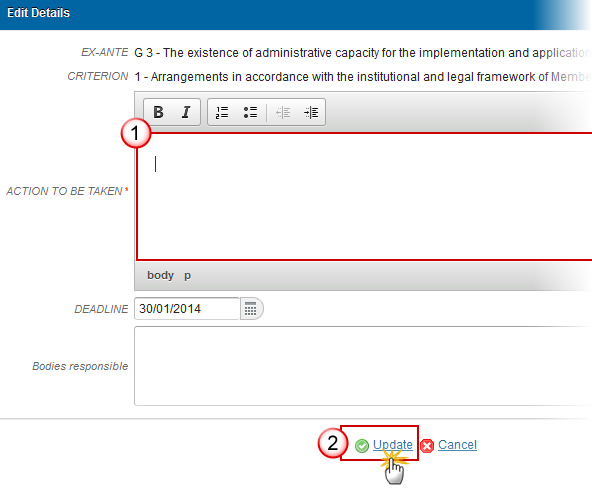
2. Enter the following information:
Enter an action to be taken.
Deadline and Bodies responsible are optional
Click on Update to save the information.
Validate the Operational Programme (SME)
Remark | The OP version can be validated when is in status 'OPEN' and resides at your Node. It is a must to have the role of MS Managing Authority Update. |
1. Click on the Validate link to validate the operational programme.
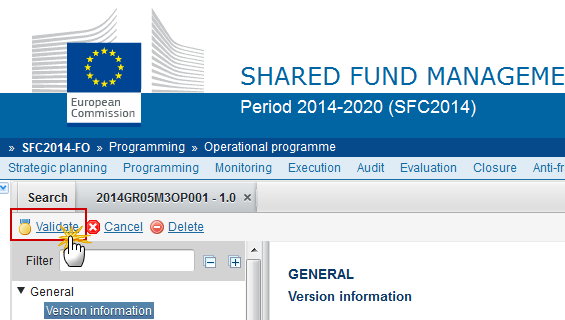
The system validates the following information:
Remark | An ERROR will block you from sending the OP. The error(s) should be resolved and the OP must be revalidated. Note that a WARNING does not block you from sending the OP. |
CODE | VALIDATION RULES | SEVERITY |
2 | The system validates the integrity of the input fields | INFO |
2.1 | Validate that the First Year and the Last Year are >= 2014 and <= 2020 and that First Year is <= Last Year. | ERROR |
2.2 | Validate that at least one Priority Axis has been defined. | ERROR |
2.4 | Validate that Technical Assistance Priority Axes are mono-Fund. | ERROR |
2.6 | Validate that the Financing Plan per Priority Axis (Table 18a) contains EU Support for all Priority Axis, Fund and Category of Region combinations defined in the Programme. In versions > 1 this EU Support can be 0. | ERROR
WARNING |
2.8 | Validate that one and only one Managing Authority has been specified | ERROR |
2.9 | Validate that one and only one Audit Authority has been specified | ERROR |
2.10 | Validate that one and only one Certifying Authority has been specified | ERROR |
2.11 | Validate that for each of the Categorisation Breakdowns (Tables 7-10 and 14-16), the total Union Support per Priority Axis and Fund equals the total Union Support (main + performance) per Priority Axis and Fund in Table 18a, and vice versa. When Programme Version Major Amendment is true then (error) else (warning). For Table 11 the Total does not have to add up. This rule doesn't apply for SME Programmes since they do not have Categorisation. | ERROR WARNING |
2.14 | Validate that at least one official in charge of the Member State exists. | WARNING |
2.15 | Validate that the CCI code matches the regular expression: (……16..OP…|……05(?!FM)OP…|……05(?!FS)OP…|……05..TA…|……16..TA…|……16..SM…|2020..16RFRE…|2020..05SFRE…|2020..16M2RE…|2020..05M2RE…|2020..16M0RE…|2020..05M0RE…|2020..05M9RE…) | ERROR |
2.17 | Validate that the Partnership Agreement of the Country of the OP has already been sent except for a Dedicated YEI Programmes and SME Programmes who will not be in the Partnership Agreement. | ERROR |
2.21 | Validate that in Table 22, the Priority Axis, Investment Priority, Fund, and Category of Region combination is defined for the Programme. | ERROR |
2.22 | Validate that Major Projects defined against this Programme in the Major Project module are listed in Table 27 by comparing the Priority Axis, Investment Priority and Major Project Title information. | ERROR |
2.23 | Validate that for SME Programmes the co-financing rate at Priority Axis is 100%. | WARNING |
2.24 | Validate that SME Programmes and SME Priority Axes only use Thematic Objective 3. | ERROR |
2.25 | Validate that SME Programmes have no data on Section 1 (except Table 1), Section2A Tables 4, 4a, 6, 7-11, Section 2B, Table 18b, Table 18c, Table 19, Section 4, Section 5, Section 6, Paragraph 7.2.2, Paragraph 7.2.3, Section 8, Section 10, Section 11, Section 12 (implicit in web). | ERROR |
2.27 | Validate that TA Programmes have no data on Section 1 Table 1, Section 2A, Section 3 Tables 18b and 18c, Section 7.2.2, Section 9.2 Table 26, Section 12.1 Table 27 and Section 12.2 Table 28 (implicit in web). | ERROR |
2.31 | Validate that in Table 27 on the Major Projects, the notification date <= the start date <= completion date. | ERROR |
2.32 | Validate that in Table 18b per Priority Axis, the ESF matching support is at least equal to the YEI specific allocation. | ERROR |
2.33 | Validate that there are no Technical Assistance Priority Axes for Fund YEI (implicit in web) | ERROR |
2.34 | validate that in Table 18b, on the YEI record the amounts for the National Public and National Private Funding are 0 or null (implicit in web) | ERROR |
2.35 | Validate that at least one Investment Priority with one Specific Objective is defined for each non-Technical Assistance Priority Axis | ERROR |
2.36 | Validate that at least one Specific Objective is defined for each Technical Assistance Priority Axis where the Union Support exceeds €15M | ERROR |
2.37 | Validate that for each YEI related Investment Priority, all Common Indicators are foreseen in Table 4a (implicit in web). | ERROR |
2.38 | Validate that for SME Programmes, only Investment Priorities of Thematic Objective 3 are selected Table 1. | ERROR |
2.39 | Validate that baseline is not null in Table 3. "Indicator {0} has no baseline in Table 3 for priority axis {1}, investment priority {2} and specific objective {3}" | WARNING |
2.40 | Validate that total baseline is not null when total target is not null in Table 4. "Indicator {0} with a target has no total baseline in Table 4 for priority axis {1} and investment priority {2}" | WARNING |
2.41 | Validate that when baseline men or women is not null that baseline total is null and that when baseline men and women are null that baseline total is not null in Table 4. "Indicator {0} has both a total baseline value and a gender breakdown or no baseline value at all in Table 4 for priority axis {1} and investment priority {2}" | WARNING |
2.42 | Validate that when target men or women is not null that target total is null and that when target men and women are null that target total is not null in Table 4. "Indicator {0} has both a total target value and a gender breakdown or no target value at all in Table 4 for priority axis {1} and investment priority {2}" | WARNING |
2.43 | Validate that total baseline is not null when total target is not null in Table 4a. "Indicator {0} with a target has no total baseline in Table 4a for priority axis {1} and investment priority {2}" | WARNING |
2.44 | Validate that when baseline men or women is not null that baseline total is null and that when baseline men and women are null that baseline total is not null in Table 4a. "Indicator {0} has both a total baseline value and a gender breakdown or no baseline value at all in Table 4a for priority axis {1} and investment priority {2}" | WARNING |
2.45 | Validate that when target men or women is not null that target total is null and that when target men and women are null that target total is not null in Table 4a. "Indicator {0} has both a total target value and a gender breakdown or no target value at all in Table 4a for priority axis {1} and investment priority {2}" | WARNING |
2.46 | Validate that baseline is not null when target is not null in Table 12 for ESF. "Indicator {0} for ESF with a target has an empty baseline in Table 12" for priority axis {1} and specific objective {2}" | WARNING |
2.47 | Validate that when baseline men or women is not null that baseline total is null and that when baseline men and women are null that baseline total is not null in Table 12. "Indicator {0} has both a total baseline value and a gender breakdown or no baseline value at all in Table 12" for priority axis {1} and specific objective {2}" | WARNING |
2.48 | Validate that when target men or women is not null that target total is null and that when target men and women are null that target total is not null in Table 12. "Indicator {0} has both a total target value and a gender breakdown or no target value at all in Table 12 for priority axis {1} and specific objective {2}" | WARNING |
2.49 | Validate that total target is not null in Table 12 for ERDF/CF. "Indicator {0} for ERDF/CF has no target in Table 12 for priority axis {1} and specific objective {2}" | WARNING |
2.51 | Validate that all programme specific output and result indicators are quantitative in Table 6. "Indicator {0} is not a quantitative indicator in Table 6 for priority axis {1}". | WARNING |
2.52 | Validate that there is at least one target value defined, either in total, either in men or either in women in Table 6. "Indicator {0} has no target value at all in Table 6 for priority axis {1}" | WARNING |
2.53 | Validate for non-CARE and CARE Priority Axes, that there is at least one milestone value defines, either in total, either in men or either in women in Table 6. "Indicator {0} has not milestone value at all in Table 6 for priority axis {1} | WARNING |
2.55 | Validate that in Table 11 (Dimension 6 – ESF Secondary Theme) only Funds ESF and YEI are used. | ERROR |
2.56 | Validate for non-CARE Priority Axes that the list of Funds of the Investment Priorities defined under a Priority Axes is equal to the list of Funds defined under that Priority Axis in "Funds, Categories of Region and Calculation Basis". | ERROR |
2.58 | Validate in Table 18c that the total amounts over Priority Axis, Fund, Category of Region equal the amounts per Priority Axis, Fund, Category of Region of Table 18a: · T18c Union Support = T18a Union Support (A) · T18c National Counterpart = T18a National Counterpart (B) | ERROR |
2.59 | Validate for subsequent major versions that compared to the previous major version · The title was not modified. We implement this via a validation rule, because in some exceptional cases the title can change. In that case we can just lower the validation level to warning, so the MS can do the update and we do not have to do the update directly in the database. In order to easily and independently switch the validation level we should not implement this rules together with rule 2.16 | ERROR |
2.60 | Validate that all integral documents have at least one attachment with a length > 0. | ERROR |
2.61 | Validate that in Table 17, the Main Allocation and the Performance Reserve amounts have no decimals. "The annual financing plan must be in euros, without decimals". | ERROR |
2.62 | Validate for each YEI Priority Axis in Table 18a that the Union Support (A) equals the total Union Support (A) for that Priority Axis in Table 18b | ERROR |
2.63 | validate that Investment Priorities of Thematic Objective 12 can only be used under Priority Axes for ERDF with Category of Region 'Outermost or Northern Sparsely Populated' | ERROR |
2.64 | Validate that in Table 18a, the Union Support (a), the National Public Funding (c), the National Private Funding (d), the EIB Contribution (g) and the Performance Reserve Union Support (j) have no decimals. "The financing plan must be in euros, without decimals" | ERROR |
2.66 | Validate when Total Funding (E) is > 0 that the (Union Support (A) / (Union Support (A) + National Public Funding (C))) * 100 of each Programme Priority Plan record in Table 18a is minimum 20% (Art. 120(6) of Reg. 1303/2013 says that “the contribution from the funds for each priority axis shall not be less than 20% of the eligible public expenditure”) | ERROR |
2.67 | Validate for non-SME Programmes that the co-financing rate of each non-YEI Programme Priority Plan record in Table 18a doesn't exceed the maximum allowed co-financing rate The maximum allowed co-financing rate for a ProgrammePriorityPlan record and the severity level for the rule are determined as followed: IF NonTaPriorityAxisSfCf.unionFinancialInstruments is true or NonTaPriorityAxisSfCf.sme is true or FosteringCrisisRepair is true THEN set maximum co-financing rate = 100% (error); ELSIF ProgrammePriorityPlan.Fund = CF and (NonTaPriorityAxisSfCf.financialInstruments is true or NonTaPriorityAxisSfCf.localDevelopment is true) THEN set maximum co-financing rate = 95% (error); ELSIF NonTaPriorityAxisSfCF.naturalDisasters is true THEN set maximum co-financing rate = 95% (error); ELSIF ProgrammePriorityPlan.Fund = CF THEN set maximum co-financing rate = 85% (error); ELSE Get distinct maximum co-financing rate(s) from MaxCofinancingRateErdfEsf for CCI.Country/PriorityPlanSfCf.RegionCategory; IF it returns no value THEN no maximum co-financing rate (no validation needed); ELSIF it returns one distinct value THEN save it as maximum co-financing rate (error); ELSE (It returned a list of distinct values) get distinct maximum co-financing rate(s) from MaxCofinancingRateErdfEsf for CCI.Country/PriorityPlanSfCf.RegionCategory/NUTS for each NUTS region covered by the Programme (ProgrammeRegion); IF it returns no value THEN save highest rate from the previous list as maximum co-financing rate (warning); ELSIF it returns one distinct value THEN save as maximum co-financing rate (error); ELSE (It returned a list of distinct values) save highest rate as maximum co-financing rate (warning); END IF; END IF; -- Determine if an increase must be applied to the maximum co-financing rate IF NonTaPriorityAxisSfCf.socialInnovation is true or NonTaPriorityAxisSfCf.financialInstruments is true or NonTaPriorityAxisSfCf.localDevelopment is true THEN add 10% to maximum co-financing rate, not exceeding 100%; END IF; END IF; | ERROR
|
2.68 | Validate that the co-financing rate of each non-YEI Priority Plan record in Table 18b doesn't exceed the maximum allowed co-financing rate The maximum allowed co-financing rate for a YeiPriorityPlan record and the severity level for the rule are determined as followed: IF NonTaPriorityAxisSfCf.unionFinancialInstruments is true or PriorityAxisSfCf.reactEu is true THEN set maximum co-financing rate = 100% (error); ELSE Get distinct maximum co-financing rate(s) from MaxCofinancingRateErdfEsf for the CCI.Country/YeiPriorityPlan.RegionCategory combinations covered by in the Programme; IF it returns no value THEN no maximum co-financing rate (no validation needed); ELSIF it returns one distinct value THEN save it as maximum co-financing rate (error); ELSE (It returned a list of distinct values) get the maximum co-financing rate from MaxCofinancingRateErdfEsf for the CCI.Country/YeiPriorityPlan.RegionCategory/NUTS combinations covered by the Programme IF it returns no value (Can happen when covered NUTS codes are not in line with covered Categories of regions) THEN save highest rate from the previous list as maximum co-financing rate (warning); ELSE save as maximum co-financing rate (error); END IF; END IF; -- Determine if an increase must be applied to the maximum co-financing rate IF NonTaPriorityAxisSfCf.socialInnovation is true or NonTaPriorityAxisSfCf.financialInstruments is true or NonTaPriorityAxisSfCf.localDevelopment is true THEN add 10% to maximum co-financing rate, not exceeding 100%; END IF; END IF; | ERROR
|
2.69 | Validate that there is at least one record in the Region Coverage. | ERROR |
2.71 | Validate that in Table 27 on the Major Projects, that each record has at least one Priority Axis/Investment Priority reference. | ERROR |
2.72 | Validate that the "Number of Bodies to whom payments will be made by the Commission in Table 23 is not bigger than the number of Funds covered by the Programme". | ERROR |
2.73 | Validate when version > 1 that when Major Amendment is set, that the Justification for amendment is not null. | ERROR |
2.74 | Validate when version > 1 that when Major Amendment is not set, that the MS amending decision information is not null (Number, Date and Entry into force date) | ERROR |
2.75 | Validate when version > 1 that the Approval by the monitoring committee is ticked (“In accordance with Article 210(2)(e) CPR, any amendment of the programme needs the approval by the monitoring committee). | ERROR |
2.76 | Validate when Priority Axis is dedicated to natural disasters that it only covers ERDF. | ERROR |
2.77 | Validate when Programme contains a natural disasters Priority Axis that the total Union support on natural disasters over all Member State Programmes is <= 5% of the Total ERDF Union support over all Member State Programmes. | WARNING |
2.78 | Validate that the “use of Art.96(8) CPR” is not set for countries other than ‘AT’, ‘CY’, ‘DK’, ‘EE’, ‘HR’, ‘LT’, ‘LU’, ‘LV’, ‘SI’. Error message should say “Your Programme cannot make use of Article 96(8)”. | ERROR |
2.79 | Validate that the 2023 Target Values (Total, Men and Women) per PA/IP in Table 4 and 4A on Common Result Indicators with a “measurement unit for baseline and target” = Number, and with an “Output Indicator as basis for target setting”, are <= the 2023 Target Values (Total, Men and Women) for the same PA/IP of the referred Output Indicator in Table 5. => “Total target value entered in table {0} is > total target value entered in table 5 for priority axis: {1}, investment priority: {2}, region category: {3}, result indicator: {4}, output indicator: {5} ({6} > {7})" => "Men target value entered in table {0} is > men target value entered in table 5 for priority axis: {1}, investment priority: {2}, region category: {3}, result indicator: {4}, output indicator: {5} ({6} > {7})" => "Women target value entered in table {0} is > women target value entered in table 5 for priority axis: {1}, investment priority: {2}, region category: {3}, result indicator: {4}, output indicator: {5} ({6} > {7})" | ERROR |
2.83 | Validate in Table 4, that Common Indicators CO12, CO13 and CO14 are not used as basis for target setting. => "Common Indicators CO12, CO13 and CO14 are obsolete following the omnibus regulation. They should eventually be replaced by programme specific indicators. If you want to keep using household indicators as basis for target setting, you have to encode them as programme specific indicators: Table 4, priority axis: {0}, investment priority: {1}, region category: {2}, result indicator: {3}, output indicator: {4}” | WARNING |
2.84 | Validate in Table 4A, that Common Indicators CO12, CO13 and CO14 are not used as basis for target setting. => "Common Indicators CO12, CO13 and CO14 are obsolete following the omnibus regulation. They should eventually be replaced by programme specific indicators. If you want to keep using household indicators as basis for target setting, you have to encode them as programme specific indicators: Table 4A, priority axis: {0}, investment priority: {1}, result indicator: {2}, output indicator: {3}” | WARNING |
2.85 | Validate in Table 5, that Common Indicators CO12, CO13 and CO14 are not used anymore. => "Common Indicators CO12, CO13 and CO14 are obsolete following the omnibus regulation. They should eventually be replaced by programme specific indicators. If you want to keep using household indicators in the programme as output indicators with a quantitative target, you have to encode them as programme specific indicators: Table 5, priority axis: {0}, investment priority: {1}, region category: {2}, output indicator: {3}” | WARNING |
2.86 | Validate in Table 6, that Common Indicators CO12, CO13 and CO14 are not used anymore. => "Common Indicators CO12, CO13 and CO14 are obsolete following the omnibus regulation. They should eventually be replaced by programme specific indicators. If you want to keep using household indicators in the performance framework, you have to encode them as programme specific indicators: Table 6, priority axis: {0}, fund: {1}, region category: {2}, output indicator: {3}” | WARNING |
2.87 | Validate in Table 13, that Common Indicators CO12, CO13 and CO14 are not used anymore. => "Common Indicators CO12, CO13 and CO14 are obsolete following the omnibus regulation. They should eventually be replaced by programme specific indicators. If you want to keep using household indicators in the programme as output indicators with a quantitative target, you have to encode them as programme specific indicators: Table 13, priority axis: {0}, output indicator: {1}” | WARNING |
2.88 | Validate in Table 18a, when minor amendment, that the Union Support (A) for a Priority/Fund/ [Category of Region] does not decrease by more than 8% compared to the value existing in the last adopted programme version existing at 01.02.2020 | WARNING
|
2.89 | Validate in Table 18a, when minor amendment, that the Union Support (A) for a Priority/Fund/ [Category of Region] does not decrease by more than 4% of the Programme Total Union Support (A) in the last adopted programme version existing at 01.02.2020 | WARNING
|
2.90 | Validate in Table 18a, when minor amendment, that the total Union Support (A) for a Fund/ [Category of region] has not changed compared to the value existing in the last adopted programme version | ERROR |
2.106 | Validate in table 18a that there is no priority axis selected in the column ‘100% co-financing rate for accounting year 2020-2021’. | ERROR |
2.116 | Validate in the categorisation tables 7, 8, 9, 10 and 11, that the Fund is a Fund defined under the Priority Axis in "Funds, Categories of Region and Calculation Basis" (PriorityAxisFundRegionCategory). | ERROR |
2.117 | Validate in Table 4 for Result Indicators different from CR05 and CR09, when the Measurement unit for baseline and target is Ratio that a Common Output Indicator used as basis for target setting is selected. => "In Table 4 when the Measurement unit for baseline and target is Ratio, a Common Output Indicator used as basis for target setting is expected: priority axis: {0}, investment priority: {1}, region category: {2}, result indicator: {3}” | WARNING |
2.118 | Validate in Table 4a for Result Indicators different from CR05 and CR09, when the Measurement unit for baseline and target is Ratio that a Common Output Indicator used as basis for target setting is selected => "In Table 4a when the Measurement unit for baseline and target is Ratio, a Common Output Indicator used as basis for target setting is expected: priority axis: {0}, investment priority: {1}, result indicator: {2}” | WARNING |
2.119 | Validate in Table 4 for Result Indicators, that the Measurement unit for baseline and target has a value => "In Table 4 the Measurement unit for baseline and target should have a value: priority axis: {0}, investment priority: {1}, region category: {2}, result indicator: {3}”, output indicator: {4}” | WARNING |
2.120 | Validate in Table 4a for Result Indicators, that the Measurement unit for baseline and target has a value => "In Table 4a when a Common Output Indicator used as basis for target setting is selected, the Measurement unit for baseline and target should have a value: priority axis: {0}, investment priority: {1}, result indicator: {2}”, output indicator: {3}” | WARNING |
2.122 | Validate in the table 14 for ESF that Intervention field codes 102 to 120 are not used (error) => "In Table 14 for priority axis “{1}”, Fund “{2}” and category of region “{3}”, Intervention field codes 102 to 120 cannot be used” | ERROR |
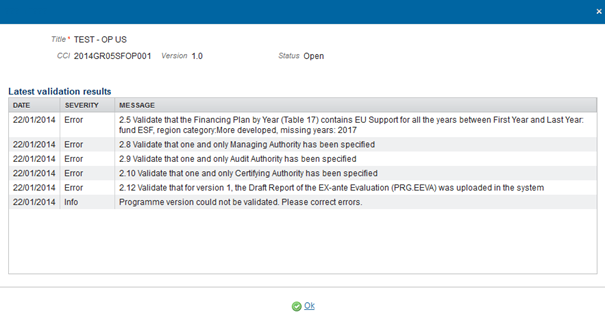
After all errors have been resolved the status of the OP becomes 'READY TO SEND'.
An example of a validation window.
Send the Operational Programme (SME)
Remark | The OP can only be sent once any Validation Errors have been removed and the status of the OP is VALIDATED. It is a must to have the role of MS Managing Authority Send. The Operational Programme version currently resides at your Node and has a status 'READY TO SEND' or 'SENT'. The Sending of information by a Member State to the Commission should be electronically signed in accordance with Directive 1999/93/EC. Sending of the different objects is generating a snapshot document and after the sending an acknowledge document is generated by the European Commission. |
1. Click on the Send link to send the Operational programme.

The system will ask you to confirm the send action:
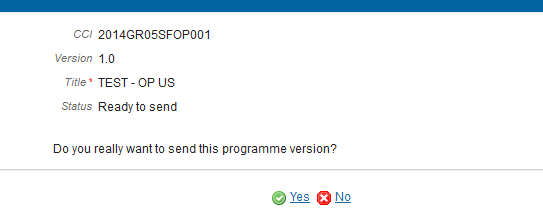
2. Click on 'Yes' to confirm. The status of the PA is 'SENT'. Click on 'No' to return to the Operational programme.
3. The Sending of information by a Member State to the Commission should be electronically signed in accordance with Directive 1999/93/EC.
Sending of the different objects is generating a snapshot document and after the sending an acknowledge document is generated by the European Commission.
This acknowledge document is signed but the Member State was not signing the snapshot document. The EU Login now provides a functionality of signing without forcing the user to have a certificate. The action to sign will only be triggered when sending to the European Commission:

Enter your SFC2014 Password
Click on the 'Sign' button
Return the Operational Programme (SME) for Modification
Remark | The Member State must request to return the OP uploading a document called 'Ms Request To Return Programme Version For Modification'. The Operational Programme version is in a status 'SENT' at the level of the Commission, or in a status 'SENT', ‘OPEN’, ‘READY TO SEND’ or ‘RETURNED FOR MODIFICATION BY MS’ at the owner node of the Member State and a lower Node exists. This scenario occurs when at the request of the Member State the Commission return an OP Version for modification because it is incomplete or incorrect and needs to be modified. |
1. Click on the Add button to add the return document called 'MS Request to return programme version for modification'.
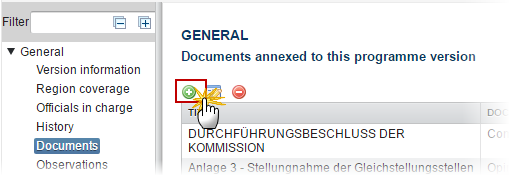
The Documents Details screen appears:

2. Enter or select the following information:
Select a Document Type called 'MS Request to return programme version for modification'.
Enter a title for your Document
Enter a Document Date
Click on the Add button to add a new attachment
· You can add multiple attachments by clicking on the Add button
· You can remove unwanted attachments by selecting the attachment and clicking on the Delete button
Enter a Title for your attachment.
Select the Language of the document.
Select the file to upload.
Click on Update & send to send the information.
On success, the Operational Programme has been set in status 'RETURN FOR MODIFICATION BY MS'.
Delete the Operational Programme (SME)
Remark | An Operational Programme can be deleted only if its status is OPEN, READY TO SEND or RETURNED FOR MODIFICATION BY MS and has never been sent to the Commission before and has no sent documents attached. It is a must to have the role of MS Managing Authority Update to delete the Operational Programme. |
1. Click on the Delete link to remove the Operational programme from the system.
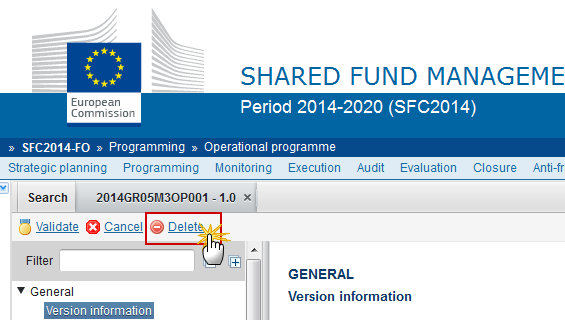
The system will ask you to confirm the delete action:
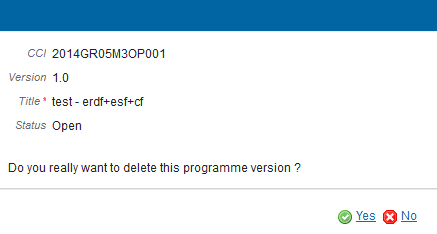
2. Click on 'Yes' to confirm or click on 'No' to return to the Operational programme.
On success, the Operational Programme is removed physically from the system.
Cancel the Operational Programme (SME)
Remark | An Operational programme can be cancelled only if its status is OPEN, READY TO SEND or RETURNED FOR MODIFICATION BY MS and has never been adopted by the Commission before and contains sent Documents or is referred by a SENT Standalone Document. It is a must to have the role of MS Managing Authority Update to cancel the Operational Programme. |
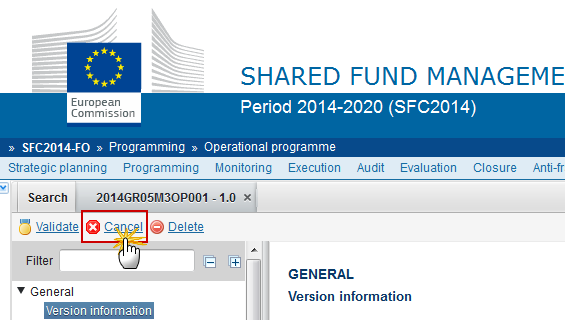
1. Click on the Cancel link to cancel the Operational programme.
The system will ask you to confirm the cancel action:
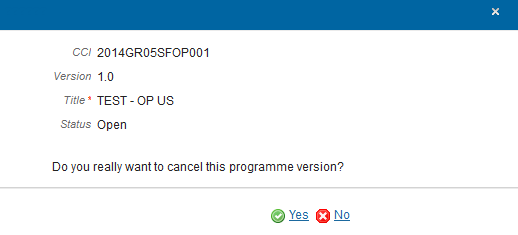
2. Click on 'Yes' to confirm or click on 'No' to return to the Operational programme.
On success, the OP has been cancelled and its status was set to CANCELLED.
Create a New Version of the Operational Programme (SME)
Remark | It is a must to have the role of MS Managing Authority Update. A New Version can only be created when the current OP version is: · ‘RETURNED FOR MODIFICATION BY EC’. · The last version was ‘ADOPTED BY EC/MS’. · The last version was ‘Not Adopted by EC’. · The last version was ‘CANCELLED’ by the Member State. · ‘WITHDRAWN AT THE REQUEST OF THE MS’. |
1. Click on the Create New Version link to create a new version of the Operational programme.

The system will ask you to confirm the creation of a new version:
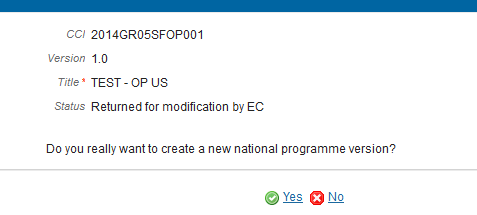
2. Click on 'Yes' to confirm. Click on 'No' to return to the Operational programme.
On success a new version of the Operational Programme has been created as a copy of the last version. Its status was set to OPEN and the version number was incremented by one when the previous version was ‘adopted by MS’ or ‘by EC’ (ex. 1.0 ->2.0) or the working version was incremented by one when the previous version was ‘returned for modification by the Commission’ or ‘cancelled’ (ex. 1.0 -> 1.1).
When the status of the last version was 'WITHDRAWN AT THE REQUEST OF THE MS' and the user has chosen to create a new version based on the withdrawn version or on the last adopted version, then the version is incremented by one (ex. 1.0 -> 2.0).
When the status of the last version was ‘Not Adopted by EC’ then the new version should be based on the last adopted version and the version should be incremented by one (ex. 1.0 à 2.0)
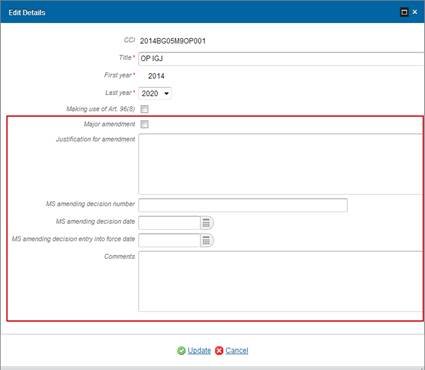
REMARK | Major amendment, Justification for amendment, MS amending decision number, MS amending decision date and MS amending decision entry into force date are only available in versions > 1. The MS related fields need to be filled in when the MS wants to create a version containing modifications which do not require a Commission Decision. This kind of version will automatically be set to 'Adopted by MS' when sent to the Commission and when only non-decisional parts of the Operational Programme have been modified. When Major amendment is set, a Justification is required and the version will need a new Commission Decision, even when only non-decisional parts have been modified.
|

Withdraw the Operational Programme (SME)
Remark | The Member State must request to withdraw the OP uploading a document called 'MS REQUEST TO WITHDRAW PROGRAMME VERSION'. The Operational Programme version is in a status 'SENT' or 'RETURNED FOR MODIFICATION BY EC’ at the level of the Commission, or in a status ‘OPEN’, ‘READY TO SEND’, ‘RETURNED FOR MODIFICATION BY MS’ or ‘CANCELLED’ at the owner node of the Member State and has previously been sent to the Commission. This scenario occurs when at the request of the Member State the Commission withdraw an OP Version and stop the amendment procedure. |
1. Click on the Add button to add the withdraw document called 'MS REQUEST TO WITHDRAW PROGRAMME VERSION'
2. The Member State must request to withdraw the OP uploading a document called 'MS REQUEST TO WITHDRAW PROGRAMME VERSION'

3. Enter or select the following information:
Select a Document Type called 'MS Request to withdraw Programme version'.
Enter a title for your Document
Enter a Document Date
Click on the Add button to add a new attachment
· You can add multiple attachments by clicking on the Add button
· You can remove unwanted attachments by selecting the attachment and clicking on the Delete button
Enter a Title for your attachment.
Select the Language of the document.
Select the file to upload.
Click on Update to save the information or on Update & send to save the information and send the document to the Commission.
On success, the Operational Programme version status was set to 'WITHDRAWN AT THE REQUEST OF THE MS'.
Remark | Withdrawals are subject to confirmation by the Commission. As a consequence of the withdrawal, the ongoing programme amendment will be deemed as never submitted and have no legal effect. |